
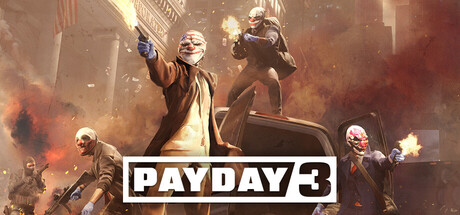
PAYDAY 3 mods on Windows need to support the game's Unreal Engine 5 build. The move to UE5 came in update 3.8, and the author of the old PD3 Logic Mod Loader says its UE4.27 release will not load in UE5.5. The UE4SS adaptation for PAYDAY 3 is a community beta. Start with the individual mod's requirements and choose a build that explicitly supports your game version. Patch 3.8 · Legacy Logic Mod Loader · PAYDAY 3 UE4SS beta
Identify what you are installing
An in-game weapon modification is managed through the equipment interface and works through the systems described in the weapon perks guide. A community appearance or interface mod changes files in or alongside the Windows installation. UE4SS itself is an extension framework for Unreal Engine games, and individual projects can use it for several different kinds of changes. The mod author's page tells you whether their add-on needs UE4SS and which package and version to obtain. UE4SS upstream project
Review the current release notes and the installation instructions together. The mod can mention UE5 in its description but still require a particular loader version or a game build that came out before yours. Be cautious about a copy attached to an old guide: the original author's listing is where compatibility and fixes are most likely to be recorded. If any required component lacks a compatible release, keep it out of your installation until its author explains the supported configuration.
Identify the storefront and Windows game folder
Open the installed-files view using the client from which you installed the game, then look for the executable and its binaries directory. The game-specific UE4SS instructions name a directory ending in PAYDAY3/Binaries/Win64 on Steam and Epic, while the Xbox app on Windows uses Content/PAYDAY3/Binaries/WinGDK. The drive and outer library folder can vary, so identify the existing path before extracting anything. Xbox app instructions describe a Windows install, and they do not provide a path for a Series console. Author's installation instructions
Before copying, inspect the archive and write down the files you plan to add or replace. The current beta instructions place the loader library alongside the shipping executable and keep the remaining files in their own UE4SS directory. Preserve the archive's folder structure and save a copy of any game files you intentionally replace. Keep that record along with the version of the game, loader and mod, then close the game before moving files.
Test the clean game and add one mod at a time
Launch the unmodified game and choose a repeatable test, such as entering the menu and opening a private round on a contract you already know. A mod that only changes an item may need a more specific reproduction, like opening the associated equipment menu. Exit the game completely before adding the extension, then repeat the same action with the same settings. If several components change at once, you lose the ability to tell which one changed the result.
Older instructions may mention -fileopenlog for loading packages. The author of the UE5 PAYDAY 3 adaptation says that launch option stopped working for the game on UE5 and documents their separate support for compatible package mods. Follow the current instructions that came with your chosen mod and check whether it calls for that loader feature. Keep an obsolete startup option out of the clean comparison. UE5 adaptation notes
Update 3.9 disabled the game's signature check for custom .pak packages, so a compatible package can load without UE4SS. Use the package author's path for a standalone .pak and reserve UE4SS for mods that explicitly call for it. Check the instructions for companion files and engine compatibility before treating either package as ready.
Roll back when the game starts crashing
If a patch leaves the game unstable, close the game and its launcher, then remove the added mod and loader files using your inventory. Restore any original files that you backed up and remove launch options that you added just for the mods. Run the storefront's install verification when available, then see whether any extra files remain from the original archive. Verification restores files the store distributes, while a manual inventory lets you identify files added separately.
Try to reproduce the original problem on the clean game using the same save, configuration and action. If it only happens with a mod installed, look for a newer version of that mod and of its dependencies, then reintroduce them one at a time. If it also happens with a clean install, check the patch archive and the connection guide if you are stopped at sign-in. Starbreeze recommends testing without mods when investigating problems following its updates. Starbreeze hotfix notes
Send a reproducible report to the right place
For a problem confined to a community mod, check the author's known issues and report the tested game build, distribution platform, mod version and loader version. Include the exact UI step or menu that reproduces the problem and whether the clean game succeeded. Where multiple extensions were installed, state which were present in the first failed run and which were still present on the repeat. This makes a report easier to act on than a list of changes accumulated over several updates.
If a clean copy still crashes after game-file verification, prepare the same evidence for Starbreeze support. A single screenshot of a generic crash prompt will not show whether the crash affects all stores or just your configuration. Include the exact wording of any error and identify when you first saw it relative to a game update. Use the publisher's submission form for issues that also affect the unmodified game. Starbreeze PC support
Tell a broken install from an incompatible release
Characterize the symptom before replacing another file. If the clean game starts but loading stops as soon as the loader is present, run the same test with no add-ons to make sure a dependent mod is not responsible. If the loader by itself is stable and one add-on crashes at a particular menu, the add-on and the affected action are better starting points for the author's issue tracker. Record whether any old files from the UE4 setup remained, since a mixture of files from two branches can make a single-version compatibility result impossible to interpret.
Some failures appear only while joining a particular host or selecting a particular item. Do a clean comparison on the same contract and at the same point in the sequence instead of deciding that one successful trip to the main menu establishes compatibility. For graphics or interface changes, try the screen to which the modification applies, then compare with a second launch after undoing it. The package author can use that sequence to see what was loaded when the symptom appeared.
Keep a small compatibility record
Your notes only need the date, the storefront, the installed game build, the loader version and each add-on's version and source. Also note whether the clean copy started, which single component you then installed and what happened during the same test. When a later update arrives, you can use the old list to remove the previous setup cleanly and to see which components already published newer versions. That is also the record worth sharing if another Windows user on a different storefront gets a different result.